
How to Check SSD Health in Windows 11 (Beginner Guide 2026)
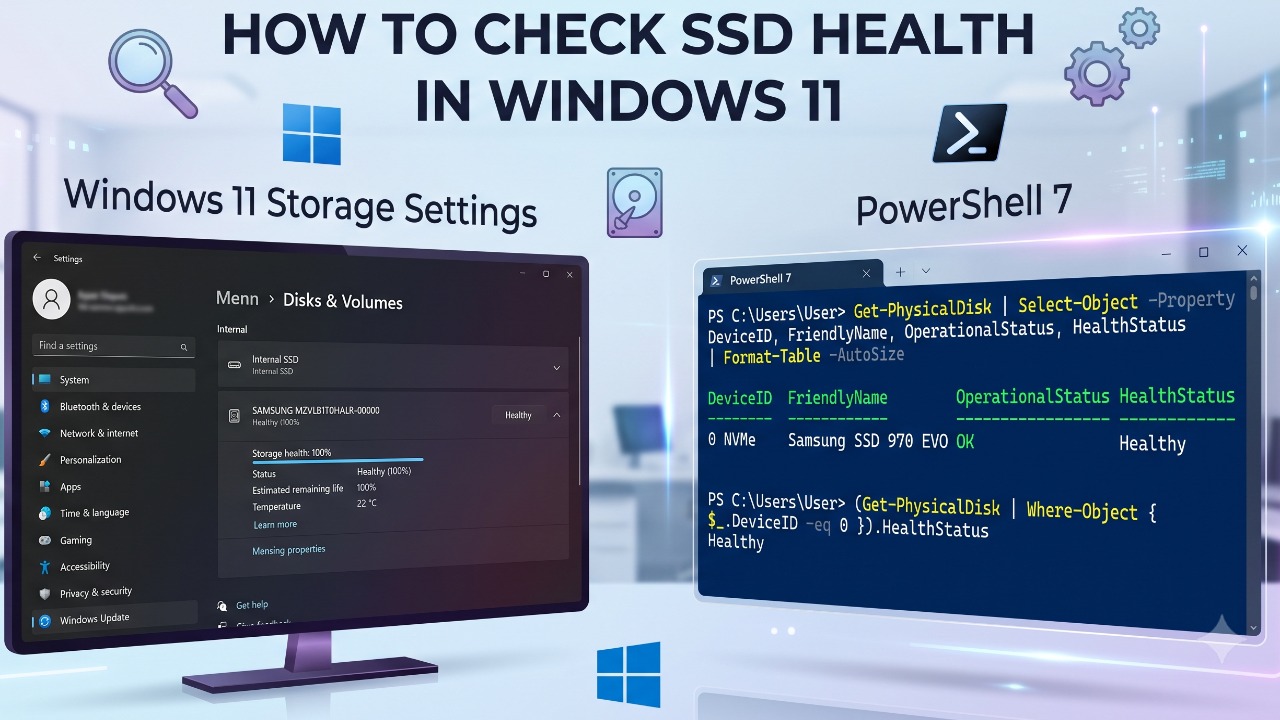
Your PC may seem perfectly normal today, but an SSD can develop problems before you notice obvious warning signs. Suddenly, Windows may freeze, files may become difficult to access, or the drive may stop working altogether. If important photos, documents, or work files are stored only on that SSD, a failure can quickly become stressful and potentially expensive. Fortunately, Windows 11 includes several built-in ways to check SSD health without opening your computer or being a technical expert. Here is how to fix it.
🚀 Method 1: Check SSD Health Through Windows 11 Settings
The easiest method for beginners is Windows 11’s built-in Storage settings. Windows can display information about installed disks without requiring additional software.
- Press Windows + I to open Settings.
- Select System.
- Click Storage.
- Open Advanced storage settings.
- Select Disks & volumes.
- Find your SSD and select Properties.
- Review the available drive information and health details.
If Windows reports a critical storage warning, do not ignore it. Back up important files before spending time troubleshooting.
🚀 Method 2: Check SSD Health With PowerShell
PowerShell provides more technical information while still being surprisingly easy to use.
- Right-click the Start button.
- Select Terminal (Admin).
- Approve the User Account Control prompt.
PS C:\Windows\system32> Get-PhysicalDisk

FriendlyName    SerialNumber    HealthStatus    OperationalStatus
NVMe SSD        S4EWNX0N1234    Healthy         OK
Look at the HealthStatus and OperationalStatus columns. A normally functioning disk may appear as Healthy with an operational status of OK. Do not panic if some fields are blank or unavailable, since the information Windows can retrieve depends partly on the SSD, storage controller, and driver.
🚀 Method 3: Check SSD Temperature, Wear and Errors With PowerShell
Windows has a lesser-known PowerShell tool called Get-StorageReliabilityCounter. This is one of the most useful built-in methods because supported drives can report information including temperature, wear, errors, and power-on hours.
- Open Terminal (Admin).
PS C:\Windows\system32> Get-PhysicalDisk | Get-StorageReliabilityCounter | Format-List

Temperature              : 38
TemperatureMax           : 55
Wear                     : 4
PowerOnHours             : 1290
ReadErrorsTotal          : 0
WriteErrorsTotal         : 0
Look for values such as Temperature, TemperatureMax, Wear, PowerOnHours, ReadErrorsTotal, and WriteErrorsTotal. Microsoft’s storage interface defines Wear as a percentage indicator, where 100 percent means the estimated wear limit has been reached. Not every SSD exposes every reliability counter to Windows, so a blank Wear or Temperature field does not automatically mean the SSD is faulty.
🚀 Method 4: Check the File System for Errors
Drive health and file system health are not the same thing. An SSD can be physically healthy while Windows has file system errors. Windows includes the CHKDSK utility for checking volumes.
- Open Terminal (Admin).
C:\Windows\system32>chkdsk C: /scan

Stage 1: Examining basic file system structure ...
Verification complete. No problems detected.- Press Enter and allow Windows to complete the scan.
- Replace C: with another drive letter if you want to check a different volume.
The /scan switch performs an online scan of an NTFS volume and is a useful first diagnostic step because it does not immediately attempt potentially disruptive repairs. Remember that CHKDSK primarily checks the file system, so a clean result is not proof that the SSD’s flash memory has no wear or hardware problems.
🚀 Method 5: Check Your SSD Manufacturer’s Diagnostic Tool
For deeper SSD information, check whether the manufacturer provides an official management utility. Major SSD manufacturers commonly provide tools that may display firmware information, temperature, drive condition, diagnostic results, and remaining life information.
- Open Device Manager.
- Expand Disk drives.
- Write down your SSD’s exact model number.
- Visit the SSD manufacturer’s official website.
- Find its official SSD management or diagnostic software.
- Install it and check the drive’s health information.
- Check whether a firmware update is recommended.
Avoid downloading “SSD repair” programs from unknown websites. For firmware and manufacturer-specific diagnostics, use the SSD maker’s official software whenever possible.
🚀 Method 6: Check Whether Windows Is Optimizing Your SSD
Optimization does not measure remaining SSD life, but it is useful for maintaining normal storage performance. Windows recognizes SSDs differently from traditional hard drives, using TRIM instead of conventional HDD-style defragmentation.
- Search for Defragment and Optimize Drives.
- Open the result.
- Find your SSD.
- Check its Media type and optimization status.
- Select Optimize if necessary.
Microsoft says Windows automatically optimizes drives, with the default scheduled optimization typically running weekly.
Conclusion
You do not need specialist software to perform a basic SSD health check in Windows 11. Start with Settings for a simple overview, use Get-PhysicalDisk for health status, and use Get-StorageReliabilityCounter when you want deeper information such as wear, temperature and errors. No single health reading guarantees that an SSD will not fail, so if Windows, PowerShell, or the manufacturer’s utility reports problems, prioritize backing up your important files before attempting repairs.
Important Tips
- Keep important files backed up even when your SSD reports that it is healthy.
- Do not treat CHKDSK as a complete SSD hardware health test.
- A blank PowerShell health value can simply mean the SSD or controller does not expose that information.
- Use your SSD manufacturer’s official utility for model-specific diagnostics and firmware updates.
- Do not manually defragment an SSD using tools designed specifically for HDDs.
- Back up important data immediately if Windows reports a critical storage warning or the drive starts disappearing unexpectedly.
- Avoid unknown third-party “SSD repair” and “health booster” applications.
Frequently Asked Questions
Open Settings, then System, then Storage, then Advanced storage settings, then Disks and volumes, and inspect your SSD. You can also run Get-PhysicalDisk in PowerShell for additional health information.
Yes. Windows provides Storage settings and PowerShell storage commands. Supported SSDs can expose temperature, wear, errors and other reliability information through Get-StorageReliabilityCounter.
Run Get-PhysicalDisk | Get-StorageReliabilityCounter | Format-List in PowerShell and check the Wear value if your SSD exposes it. A higher value means more wear, not more remaining life.
Not completely. CHKDSK is primarily used to examine a volume’s file system. Use storage reliability data or the SSD manufacturer’s diagnostic software when investigating the physical drive itself.
Yes. Microsoft’s built-in Optimize Drives feature recognizes SSDs and uses TRIM as part of SSD optimization, which Windows normally performs automatically.