
How to Recover Deleted Files in Windows 10/11 (Step-by-Step Guide)
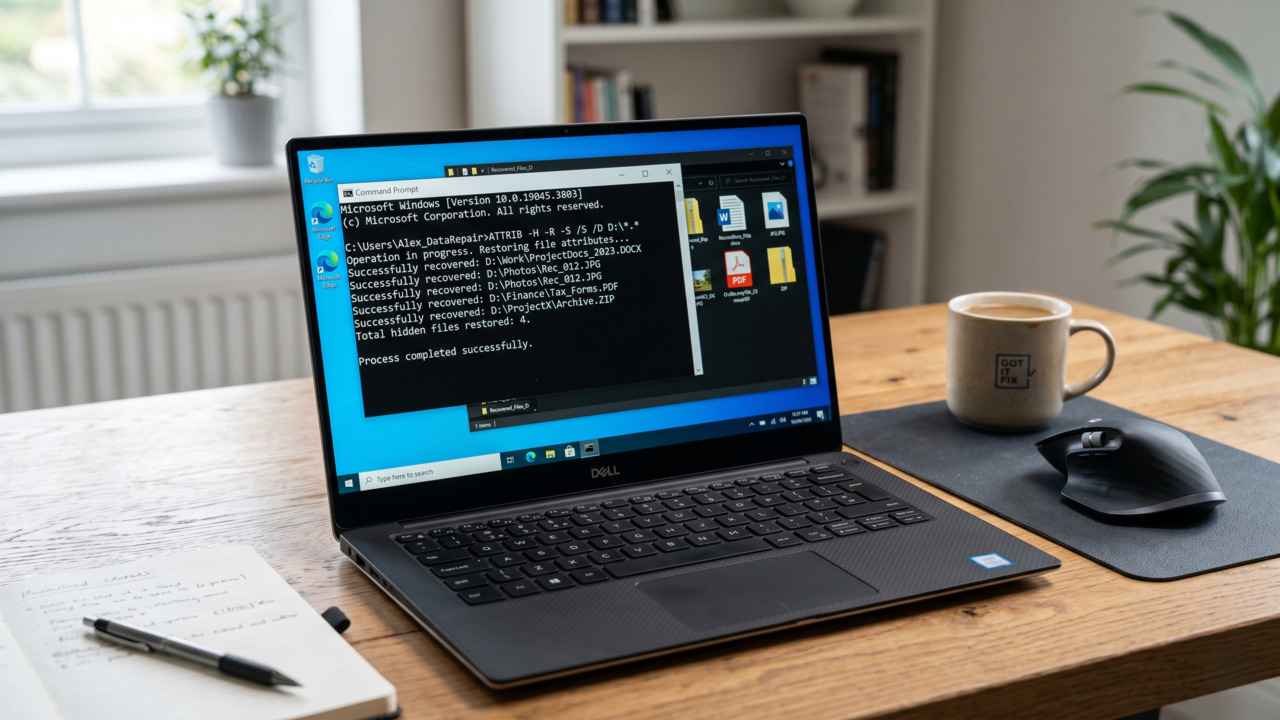
Accidentally deleting an important file can feel like a disaster but your data is often still recoverable. If you’re looking for how to restore data in Windows 10 or Windows 11, there are built-in tools like the Recycle Bin and backup features that can help you recover deleted files quickly.
The key to successful data recovery is acting fast. When a file is deleted, Windows marks the space as available rather than erasing it immediately, giving you a chance to restore it before it gets overwritten.
7 Effective Methods to Restore Your Data
🚀 Method 1: Check the Recycle Bin
If you just deleted the file, Windows usually moves it to a temporary storage area.
- Press Ctrl + Z to undo the deletion.
- Open the Recycle Bin and search for your file.
- Right-click and select Restore.
🚀 Method 2: Use the Windows File History Feature
File History is a powerful built-in backup tool. If you enabled this feature previously, Windows has likely saved several versions of your files to an external drive or network location.
- Search for File History in the Start menu.
- Select Restore your files with File History.
- Browse the snapshots and click the Green Restore button.
🚀 Method 3: Restore Folder Previous Versions
Windows often creates “Shadow Copies” as part of system restore points. This allows you to roll back a folder to a specific point in time.
- Navigate to the folder where the deleted file was stored.
- Right-click the folder and select Properties.
- Click the Previous Versions tab.
- Select a folder version from a date when the file still existed.
- Click Open to browse the files and manually copy the one you need, or click Restore to revert the entire folder.
🚀 Method 4: Recover From OneDrive or Cloud Backup
- Log into your cloud account via a web browser.
- Navigate to the Recycle Bin (OneDrive) or Trash (Google Drive).
- Locate the file and click Restore.
🚀 Method 5: Microsoft’s Windows File Recovery Tool
For “permanently” deleted data, Microsoft offers an official command-line utility available for free in the Microsoft Store. This tool is ideal for cases where the Recycle Bin has been emptied.
- Download Windows File Recovery from the Microsoft Store.
- Run the app as an Administrator.
winfr C: D: /regular /n \Users\<Username>\Documents\- C: is the drive you are searching; D: is the destination where the recovered file will be saved. You must save recovered data to a different drive than the source to prevent corruption.
🚀 Method 6: Reveal Hidden Files Using Command Prompt
For advanced users comfortable with typing commands, Windows has a built in tool worth trying. This works best on drives with file system errors rather than simple deletions.
- Open Command Prompt as Administrator.
C:\Windows\System32>chkdsk X: /f

C:\Windows\System32>ATTRIB -H -R -S /S /D X:\*.*

Recovered files placed in a folder on drive X.- -H: Removes the Hidden attribute so the file becomes visible.
- -R: Removes the Read-only attribute, allowing you to move or edit the file.
- -S: Removes the System attribute, ensuring the file is treated as a normal file.
- ** /S and /D**: These flags tell Windows to apply the command to all files and subfolders within the drive.
- X:.: Replace X with the letter of your drive (e.g., C: or D:).
🚀 Method 7: Use Third-Party Recovery Software
When built-in tools fail, third-party software can perform a “Deep Scan” by reading raw data sectors on your drive.
- Recuva: A beginner-friendly tool that offers a completely free version with unlimited recovery.
- Disk Drill: Known for a high success rate and a polished interface; it allows you to recover up to 500MB for free.
- PhotoRec: An open-source, powerful utility that is highly effective for recovering data from corrupted SD cards or USB drives.
Important Tips for Successful Recovery
- The SSD vs. HDD Factor: If your computer has an SSD, recovery is much harder due to the TRIM command. You must act immediately before the drive overwrites the blocks.
- Stop Writing Data: Avoid browsing or downloading; every new bit of data risks overwriting your lost file’s physical location.
- Recover to a Different Drive: Always save recovered files to a USB drive or external HDD to prevent data corruption on the source drive.
Conclusion
Data loss is frustrating, but often reversible. By utilizing the Recycle Bin or professional tools, you have an excellent chance of restoration. For long-term safety, always follow the 3-2-1 backup strategy: 3 copies, 2 media types, 1 off-site.
Frequently Asked Questions
Standard CMD cannot “undelete” data. Use the attrib command to find hidden files, but use the Windows File Recovery utility for actual restoration.
Yes, as long as you performed a Quick Format. Professional tools like Recuva can reconstruct the file system from unallocated space.
No, the attrib command cannot recover truly deleted files. It is used to change file attributes (Hidden, Read-only, System) to make files visible again.
There is no fixed time. It depends on how much new data is written to the drive. Some files remain recoverable for weeks, while others may be overwritten within hours.
Reputable tools like Recuva are generally safe if downloaded from their official websites. Avoid random third party download sites that may include unwanted extras.