
How to Turn Off Advertising ID in Windows 11
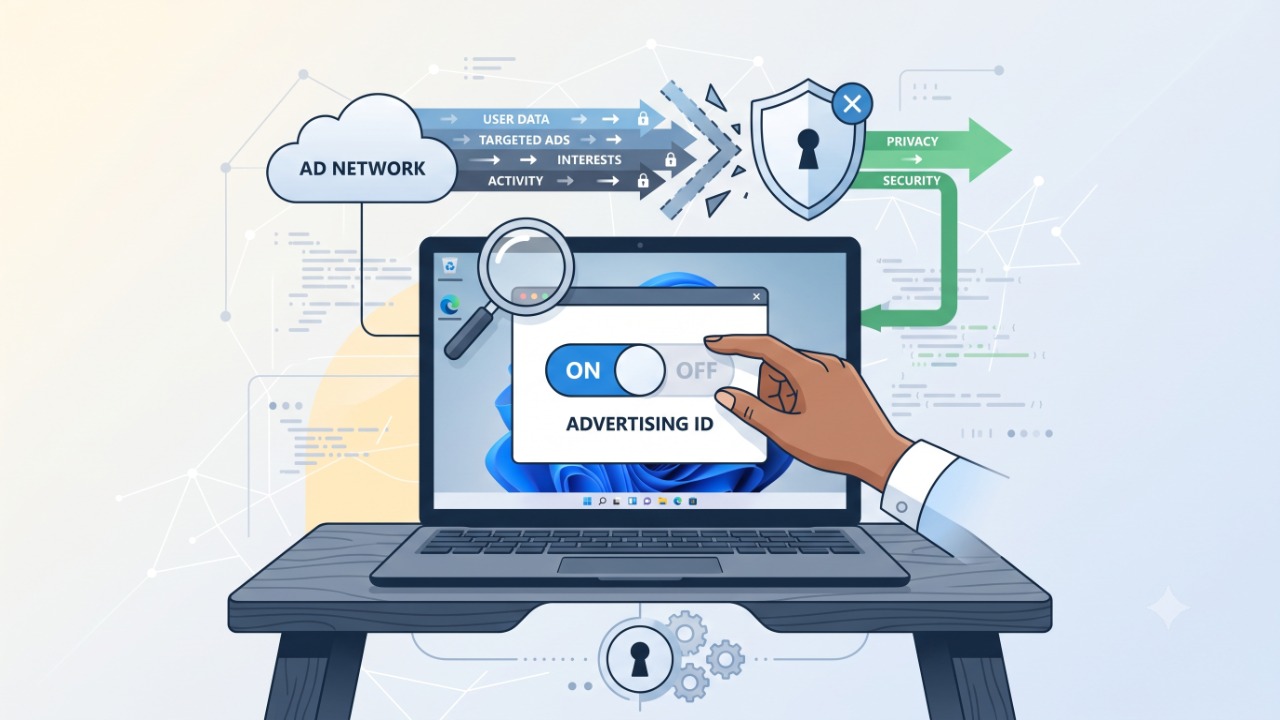
You install a few apps on your Windows 11 PC and later notice ads or recommendations that seem unusually relevant to your interests. Windows can create a unique Advertising ID that supported apps and advertising networks may use to personalize advertising and other experiences. Turning it off gives apps less ability to use this Windows identifier for personalized ads, though it does not block every ad or remove advertising from the internet. If you prefer more privacy and less ad personalization, here is how to fix it.
🚀 Method 1: Turn Off Advertising ID in Windows 11 Settings
For most people, Settings provides the easiest and safest way to turn off Advertising ID. You do not need commands, Registry changes, or additional software.
- Press Windows + I to open Settings.
- Select Privacy & security.
- Look for General under Windows permissions.
- Find Let apps show me personalized ads by using my advertising ID.
- Turn the switch Off.
- Close Settings.
Microsoft says Windows creates a unique Advertising ID for each user on a device, and apps can use this identifier for purposes such as providing more relevant advertising. On newer Windows 11 versions, you may see a Recommendations & offers privacy page instead of General, since Microsoft is gradually replacing the older page.
🚀 Method 2: Turn It Off Using Windows Search
If you cannot find the correct privacy menu, use Windows Search instead. This method is useful because Microsoft sometimes reorganizes Settings after Windows updates.
- Open Start.
- Search for Advertising ID or Privacy settings.
- Open the relevant Windows privacy result.
- Find the personalized advertising option.
- Turn the Advertising ID setting Off.
If you still cannot find it, return to Settings, then Privacy & security, and look for either General or Recommendations & offers.
🚀 Method 3: Use Group Policy for More Control
Windows Pro, Enterprise, and Education users can control Advertising ID through Group Policy. This method makes more sense on managed or shared computers than on a typical home PC.
- Press Windows + R.
Run: gpedit.msc

Path: Computer Configuration
  ▸ Administrative Templates
    ▸ System
      ▸ User Profiles
▸ Turn off the advertising ID → set to Enabled- Press Enter and go to Computer Configuration.
- Open Administrative Templates.
- Select System, then User Profiles.
- Open Turn off the advertising ID.
- Select Enabled.
- Click Apply, then OK.
The wording can seem confusing. You need to enable the “Turn off the advertising ID” policy to disable Advertising ID.
🚀 Method 4: Reduce Other Personalized Recommendations
Advertising ID represents only one part of Windows personalization. Turning it off does not automatically disable every recommendation, suggestion, or personalized experience in Windows.
- Open Settings.
- Select Privacy & security.
- Open General or Recommendations & offers, depending on your Windows version.
- Review each personalization setting.
- Disable features you do not want.
For example, Windows has separate settings that can let websites access your language list or let Windows track app launches to improve Start and search results. Do not automatically disable every privacy option. Read what each one does and choose settings that match your needs.
🚀 Method 5: Reduce Recommendations in the Start Menu
You may turn off Advertising ID and still see recommendations in Windows. That does not mean the setting failed, since Start recommendations use separate Windows settings.
- Open Settings.
- Select Personalization.
- Choose Start.
- Review the available recommendation options.
- Turn off the recommendations you do not want.
Focus on settings related to recommendations, tips, shortcuts, and promoted content rather than expecting one universal disable-all-ads switch, since Advertising ID controls an identifier used by supported apps and does not control every promotional surface across Windows.
🚀 Method 6: Understand What Turning Off Advertising ID Actually Does
This distinction matters for privacy. When this feature is enabled, supported apps can access the identifier.and use it in ways similar to how websites use unique identifiers stored in cookies.
- Windows apps cannot use the Windows Advertising ID for personalization.
- Turning it back on resets the Advertising ID.
- You may still see advertisements.
- Ads may become less personalized.
- Website cookies are not disabled.
- Third-party advertising systems may still use their own methods.
Microsoft explicitly states that the Windows Advertising ID setting does not apply to other forms of interest-based advertising, including website advertising that uses cookies. Think of this setting as reducing one type of tracking and personalization, not as an ad blocker.
Conclusion
Turning off this setting in Windows 11 takes only a few clicks. Open Settings, then Privacy & security, find the Advertising ID control under General or the newer Recommendations & offers area, and disable personalized advertising through the identifier. Windows Pro and business users can also disable Advertising ID through Group Policy. Just remember that disabling it improves control over one form of personalization, but it does not remove every advertisement, recommendation, cookie, or tracking method from your computer.
Important Tips
- Turn off Advertising ID if you do not want supported Windows apps using it for personalized advertising.
- Do not expect the setting to remove all ads from Windows.
- Review other Windows recommendation settings separately.
- Check browser privacy settings separately, since Advertising ID does not disable website cookies.
- Avoid third-party “privacy optimizer” apps that make large numbers of undocumented Windows changes.
- Use Group Policy mainly when you need administrative control over a PC.
- Recheck privacy settings after major Windows updates if privacy preferences matter to you.
Frequently Asked Questions
Windows generates a unique Advertising ID for each user on a device. Supported apps and advertising networks can use it for purposes such as providing more relevant ads and personalized experiences.
You can turn it off if you prefer less personalized advertising and do not want supported apps using this Windows identifier. Disabling it does not stop you from using Windows normally.
No. Microsoft states that disabling Advertising ID does not reduce the number of ads you see. It can make them less personalized, since website cookies and other advertising systems work separately.
It limits supported Windows apps from using the Windows Advertising ID for personalized experiences. However, it does not disable other tracking or advertising technologies.
Yes. Return to the same Windows privacy setting and enable it again. Microsoft notes that turning Advertising ID back on resets the identifier.