How to Install Windows Without USB (Windows 10/11 Guide 2026)
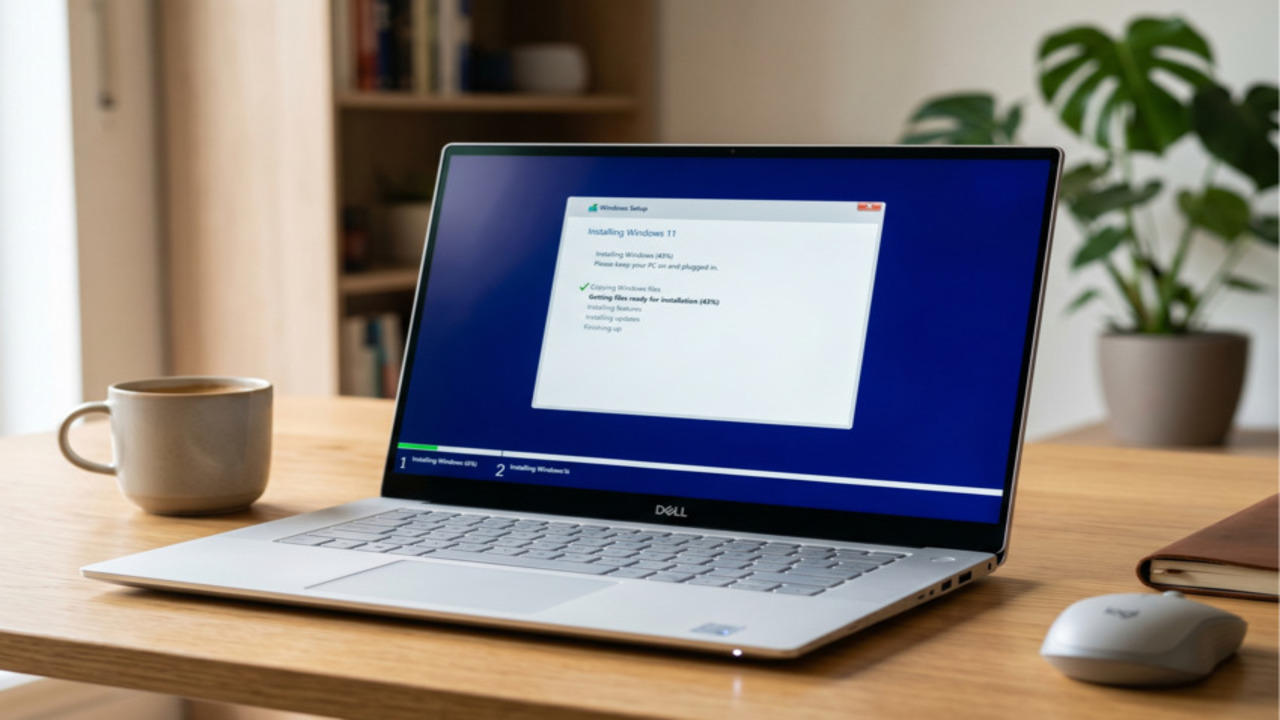
Install Windows Without USB (Step-by-Step Guide)
Introduction
Installing Windows without a USB or pendrive is completely possible using built-in tools and simple methods. Whether you lack a spare drive or your ports aren’t working, these safe and proven techniques will help you reinstall your OS. This guide is suitable for both beginners and advanced users.
Follow the step-by-step instructions below to complete the installation easily.
- Download the Windows ISO from the official Microsoft website.
- Right-click the ISO file and select Mount.
- Open the mounted drive and run setup.exe.
- Choose Upgrade or Custom Install.
- Follow the on-screen instructions to complete the process.
Best for: Most users (easy, fast, no data loss option).
- Create a new partition (20–30GB recommended).
- Copy all Windows ISO files into that partition.
- Open Command Prompt as Administrator.
- Type
diskpart→list disk→select disk 0. - Type
list partition→ select your new partition. - Type
activeto make it bootable, thenexit. - Restart your PC and boot into Windows setup.
If setup does not start, run: X:\boot\bootsect.exe /nt60 X: (Replace X with your partition letter).
Best for: Advanced users who want a clean install without a USB.
Note: This method works mainly on Legacy BIOS systems. UEFI systems may require a different boot setup.
- Go to Settings → System → Recovery.
- Click on Reset this PC.
- Select Remove everything or Keep my files.
- Choose Cloud Download or Local Reinstall.
Best for: Quick reinstall without technical steps.
Conclusion
- The ISO method is the most flexible for general users.
- Reset This PC is the fastest for a fresh start.
- The Hard Drive method is ideal for clean installations without external media.
- Always back up your important data before proceeding.
- Only download ISO files from official Microsoft sources.
- Have your Windows product key ready for activation.
Frequently Asked Questions
❓ Can I install Windows without USB?
Yes, you can use an ISO file, a hard drive partition, or the “Reset This PC” feature.
❓ Is it safe to install Windows without USB?
It is completely safe as long as you use official files and back up your data first.
❓ Will my data be deleted during installation?
Only if you choose “Remove everything.” Choosing “Keep my files” will preserve your personal data.