
How to Fix Slow Internet on Laptop (Proven Methods)
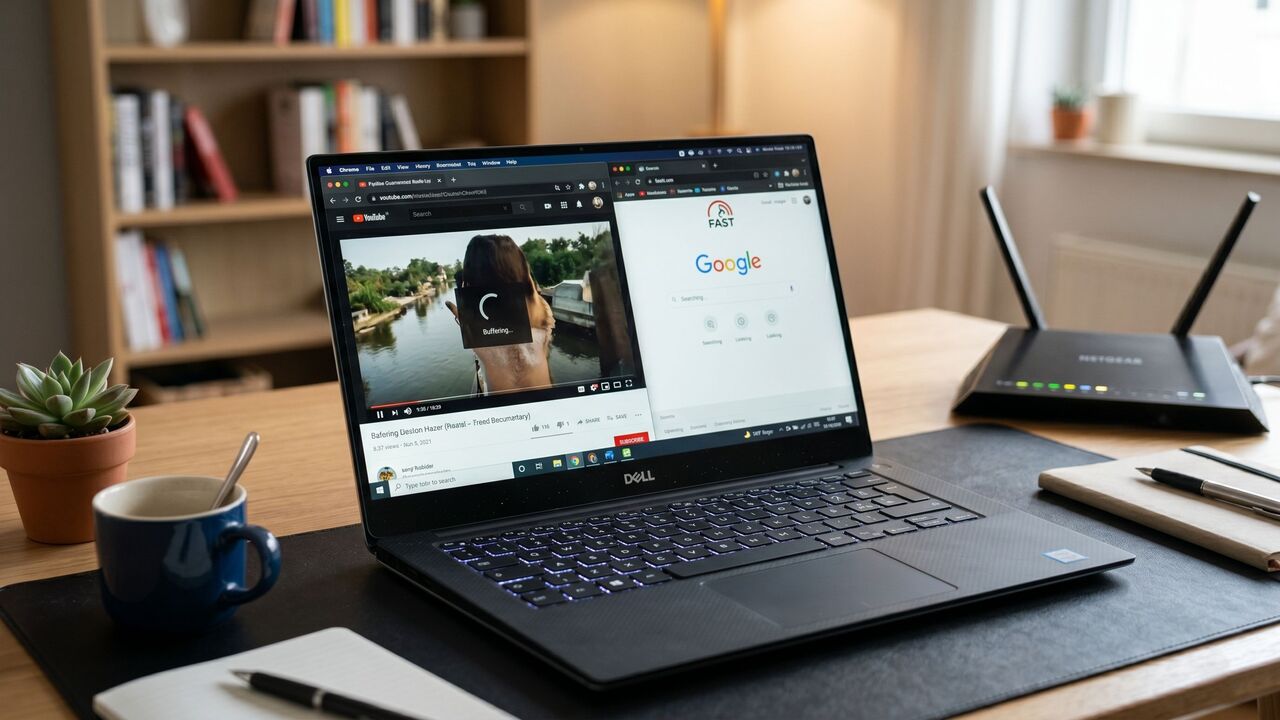
You are in the middle of a career-defining video call or finishing an urgent freelance project when the screen freezes. Your stomach drops as you realize your connection has stalled. Minutes feel like hours as you lose money, miss deadlines, and damage your professional reputation. A lagging connection is more than a nuisance; it is a direct threat to your productivity and peace of mind. The good news is that your hardware is likely fine. With a few quick adjustments, you can reclaim your speed. Here is how to fix it.
🚀 Method 1: Flush the DNS Cache
Sometimes your laptop gets stuck trying to find a website because its internal “map” is outdated or corrupted. Clearing this cache forces a fresh, faster connection.
- Click the Start button and type cmd.
- Right-click Command Prompt and choose Run as Administrator.
C:\Windows\System32>ipconfig /flushdns

Windows IP Configuration

Successfully flushed the DNS Resolver Cache.- Type and press Enter.
- You will see a success message. This often fixes immediate loading delays.
🚀 Method 2: Update Your Network Adapter
Outdated software is a common reason for slow internet on laptop devices. If your driver is old, it cannot handle the high speeds your router is sending out.
- Right-click the Start icon and select Device Manager.
- Double-click on Network adapters.
- Find your Wi-Fi controller, right-click it, and select Update driver.
- Choose Search automatically for drivers and restart your laptop once finished.
🚀 Method 3: Change to a Public DNS
Your Internet Service Provider (ISP) usually assigns you a default DNS, which can be slow and congested. Switching to a global leader like Cloudflare or Google can make browsing feel instant.
- Go to Settings, then Network & Internet, and select Wi-Fi.
- Click on your network properties and find DNS server assignment.
- Click Edit, change the setting to Manual, and turn on IPv4.
- Enter 1.1.1.1 (Cloudflare) or 8.8.8.8 (Google) as your Preferred DNS.
🚀 Method 4: Disable Windows Delivery Optimization
This hidden feature allows your laptop to send updates to other computers over the internet, essentially “stealing” your bandwidth while you work.
- Open Settings and go to Windows Update.
- Select Advanced options and then Delivery Optimization.
- Turn the switch to Off for Allow downloads from other PCs.
🚀 Method 5: Adjust Wireless Power Settings
Many laptops are set to “Power Saving” mode by default, which weakens your Wi-Fi card’s ability to stay connected to distant signals.
- Type Edit Power Plan in your search bar and click it.
- Select Change advanced power settings.
- Scroll to Wireless Adapter Settings and then Power Saving Mode.
- Set both “On battery” and “Plugged in” to Maximum Performance.
Conclusion
A slow laptop is a fixable problem. By clearing your network cache, updating your hardware drivers, and stopping background bandwidth drains, you can get back to work without the stress of the spinning loading icon. Most speed issues are just a few clicks away from a total fix.
Important Tips
- Always keep your laptop within clear sight of the router whenever possible.
- Use the 5GHz Wi-Fi band if you are close to the router, as it is much faster than 2.4GHz.
- Unplug your router for 60 seconds once a week to clear its memory and reset the signal.
- Close unused browser tabs that might be auto-refreshing in the background
Frequently Asked Questions
This usually happens because your laptop has outdated network drivers, too many background apps running, or its power-saving settings are throttling the Wi-Fi card.
Yes. A VPN encrypts your data and routes it through another server, which can reduce your speed by 10% to 30% depending on the server distance.
Yes. Malware can use your bandwidth to send data to hackers. If your speed drops suddenly, run a full scan with Windows Defender.
Absolutely. A wired connection eliminates signal interference and provides a much more stable and faster speed than Wi-Fi.
This is often caused by “Upload Speed” issues. Closing other apps that use the internet, like Dropbox or OneDrive, can free up the space needed for your call.