
How to Free Up Disk Space in Windows (2026)
Introduction
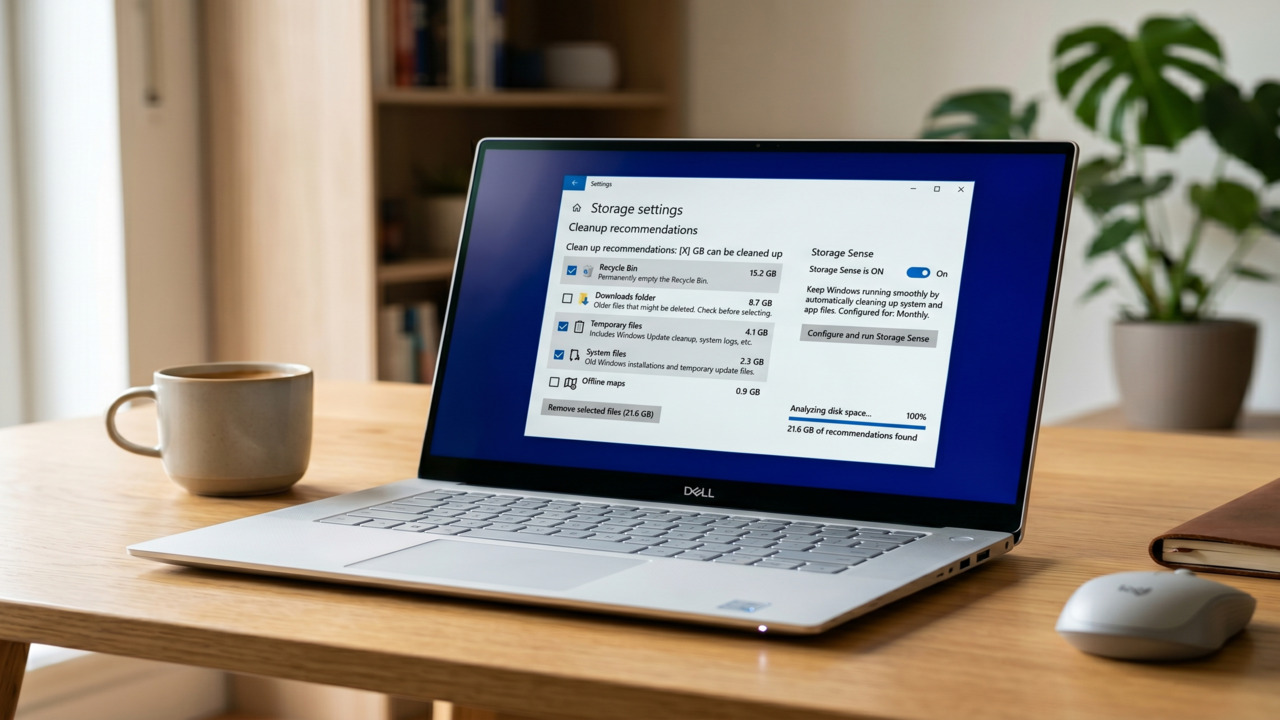
Running out of storage is one of the most frustrating experiences for any PC user. One moment you’re downloading a critical update, and the next, a “Low Disk Space” warning stops everything. A full drive doesn’t just block new files; it significantly slows down your system performance because Windows needs “breathing room” to function.
The good news is that you don’t need to delete your important photos or documents to fix this. Windows includes several built-in tools designed to clean up storage by removing system cache, old update logs, and digital junk. In this comprehensive guide, we will cover 8 effective methods to reclaim your hard drive space safely.
Follow these step-by-step methods to optimize your storage today.
- Open Settings → System → Storage
- Turn ON Storage Sense
- Click Configure Storage Sense to set automated schedules
- Click Clean now at the bottom of the page
Best for: Automated, hands-off maintenance that keeps your drive clean daily.
- Search for Disk Cleanup in the Start menu and open it.
- Select your (C:) drive and click OK.
- Click Clean up system files (this is key to finding hidden gigabytes).
- Check boxes for “Windows Update Cleanup” and “Temporary Files.”
- Click Delete Files.
Best for: Removing massive leftover files from previous Windows updates.
- Press Windows + R on your keyboard.
- Type
%temp%and press Enter. - Select all files (Ctrl + A) and press Delete.
- Skip any files that say they are “currently in use.”
Best for: Clearing out application cache that standard tools sometimes miss.
- Go to Settings → Apps → Installed Apps.
- Change the “Sort by” filter to Size (Large to Small).
- Identify heavy apps or games you no longer use.
- Click the three dots and select Uninstall.
Best for: Freeing up massive amounts of space (20GB+) instantly.
- Search for CMD, right-click, and Run as Administrator.
- Type:
powercfg /hibernate offand press Enter. - This deletes the hiberfil.sys file immediately.
Best for: Reclaiming 4GB to 16GB of space if you only use “Sleep” mode.
If you are on a device with very small storage (like a 64GB or 128GB SSD), Windows can compress its own system files.
- Open Command Prompt (Admin).
- Type:
compact.exe /compactos:alwaysand press Enter.
Best for: Saving 2-3GB of space on budget laptops and tablets.
- Identify large folders (Videos, high-res Photos).
- Upload them to OneDrive, Google Drive, or an External HDD.
- Use the “Files On-Demand” feature in OneDrive to see files without storing them locally.
Best for: Preserving personal data while keeping your internal drive empty.
Conclusion
Maintaining free disk space is essential for a fast, stable Windows experience. By combining automated tools like Storage Sense with manual deeper cleans like Windows Update Cleanup and Disabling Hibernation, you can ensure you never see that “Low Disk Space” warning again.
- Run a cleanup at least once a month to prevent junk buildup.
- Always keep at least 10% of your SSD free for optimal speed.
- Prioritize uninstalling large unused apps over deleting small files.
- Empty Recycle Bin: Deleting a file doesn’t free space until the bin is emptied.
- Browser Cache: Clear your Chrome or Edge cache to free up 1GB+ easily.
- Avoid “Registry Cleaners”: Most third-party “cleaners” do more harm than good; stick to built-in Windows tools.
Frequently Asked Questions
❓ Can I free up disk space without deleting personal files?
Absolutely. By targeting temporary files, system logs, and old update caches, you can reclaim huge amounts of space without touching your documents or photos.
❓ Is Disk Cleanup safe to use?
Yes, it is a native Windows utility. It is specifically programmed not to delete any files required for your computer to boot or run safely.
❓ Why is my disk space disappearing on its own?
This is usually caused by Windows creating “Restore Points,” downloading background updates, or browser caches growing as you surf the web.
❓ Does a full hard drive make my PC slow?
Yes. When a drive is full, Windows cannot efficiently manage the “Page File” (virtual memory), leading to stutters and slow application loading.